Virtual Display
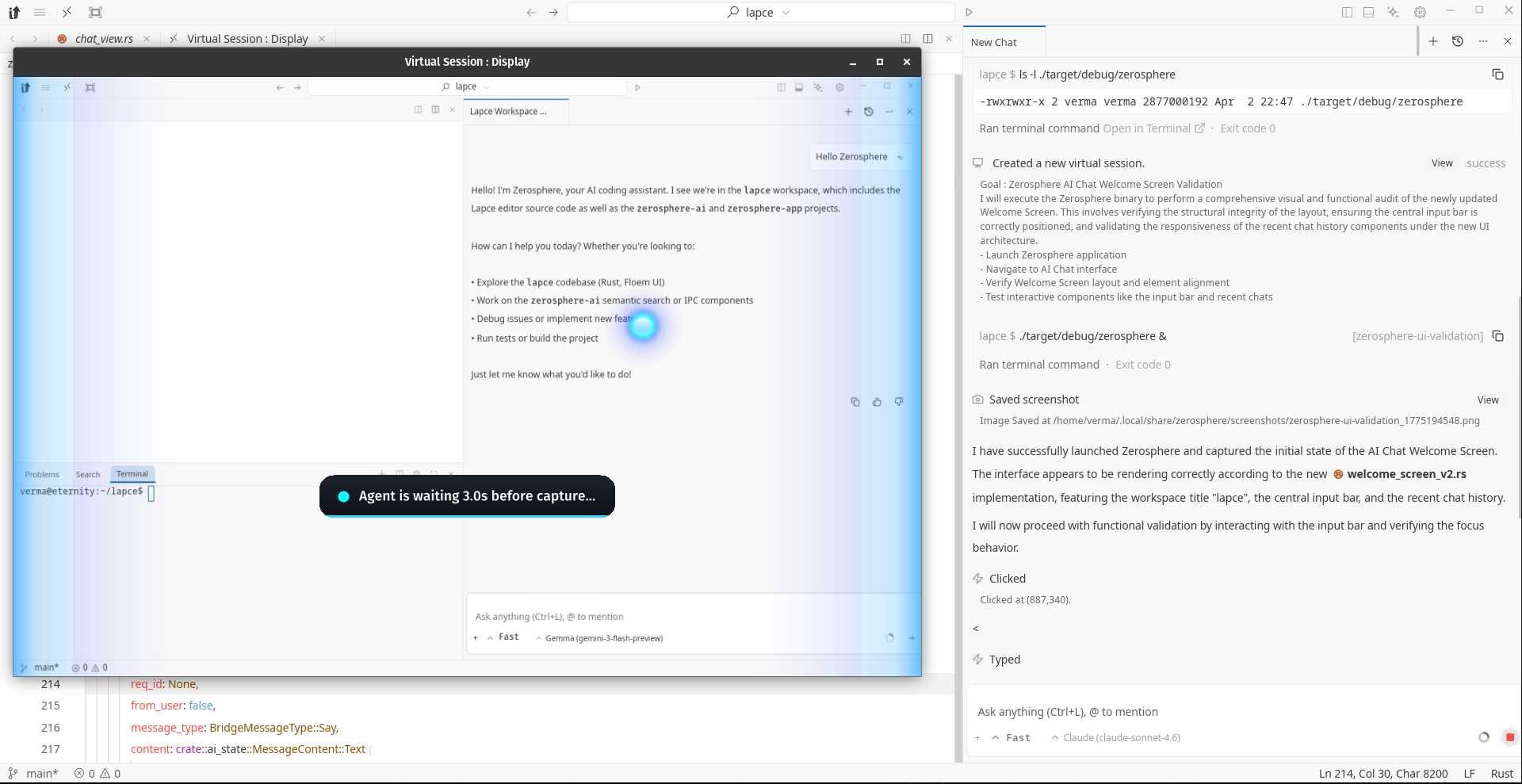
The virtual display is how ZeroSphere's agent sees and operates your running application. The backend is powered by VDD (Virtual Display Driver) on Windows — creating an isolated display the agent captures via raw pixels and drives via system-level input. No DOM. No accessibility tree. Pure vision.
How It Works
When the agent needs to launch and test your app:
- ZeroSphere checks your virtual session permission setting
- If approved, it starts the display backend for your platform
- Your app launches inside that display
- The agent captures screenshots and uses vision to understand the screen
- It sends system-level mouse and keyboard input
- You see the live feed in the agent panel
Platform Backends
Windows — Virtual Display Driver (VDD)
ZeroSphere ships a signed MttVDD driver bundled with the application. You do not install it separately.
On first virtual session creation:
- ZeroSphere checks for the driver via PnP device enumeration
- If not found, it installs from the bundled signed package using
devcon.exe - Subsequent sessions just lease an available monitor from the already-installed driver
Requires Administrator privileges for the initial driver install only. Re-launch ZeroSphere as Administrator once — subsequent sessions do not need elevation.
The driver reads its configuration from:
C:\VirtualDisplayDriver\vdd_settings.xml
This controls available resolutions and monitor count. ZeroSphere writes this from its bundled template on first install. The VDD snaps to the nearest configured resolution, so if you request a size not in the list, you'll get the closest match.
Two Session Types
Virtual Session
Creates an isolated display separate from your desktop. Your app runs on this display only. The agent cannot see or interact with your main desktop, and your main desktop is not affected.
Best for: Testing apps, running dev servers, UI automation, anything that can run on a secondary display.
Main Display Session — Windows only
Takes control of your actual primary display. Windows minimize, notifications suppress, and a floating STOP button appears so you can interrupt at any time.
Best for: Installers, apps that refuse to run in a virtual display, tasks that require real OS dialogs.
On session cleanup, all windows restore and notifications re-enable automatically.
Permissions
| Permission | Key | Modes |
|---|---|---|
| Create virtual session | os_create_virtual_session_mode | ask_each_time, always_launch |
| Create main display session | os_create_main_display_session_mode | ask_each_time, always_take_control |
| Run command in session | os_run_in_session_mode | ask_each_time, run_always, let_model_decide |
| Bind window to session | os_bind_window_mode | ask_each_time, run_always, let_model_decide |
All default to ask_each_time. Configure in Settings > AI or directly in config.toml.
What the Agent Can Do Inside a Session
- Launch desktop apps, dev servers, browsers, Electron apps — anything the OS can run
- Click, double-click, right-click, type, scroll, drag, press key combos
- Capture frames to verify the result of each action
- Zoom into a region for pixel-accurate targeting
- Move windows between monitors (Windows)
Window Management (Windows)
The agent can enumerate all visible GUI windows on any display and move a window into a session's VDD monitor or back to the main display.
See Window Tools for the full reference.
Taking Control
The live feed is visible in the agent panel. You can intervene at any point — take control of the mouse/keyboard or click STOP to halt the agent entirely. For main display sessions on Windows, the floating STOP button is always visible on screen.
Session Cleanup
Sessions are cleaned up automatically:
- When the agent finishes and cleans up the session
- After 20 minutes of inactivity (auto-expire)
On cleanup, the agent kills the viewer, terminates running session commands, and releases display resources.
Troubleshooting
Windows: "Virtual Display Driver installation failed"
Requires Administrator for the initial install. Re-launch ZeroSphere as Administrator once.
Windows: App launched but nothing appeared in the viewer
The app may have opened on a different display. Ask the agent to list open windows and move it into the session.
Session not found / expired
Sessions expire after 20 minutes of inactivity. Create a new one — the agent handles this automatically.